
If you’ve ever dreamed of having your entire life, work, and creative projects organized in one seamless space, Notion might be your new best friend. From simple note-taking to advanced database management, Notion is the Swiss Army knife of productivity tools. But if you’ve ever cracked open a new Notion page and felt like you were staring into the abyss of endless possibilities (and confusion), don’t worry—you’re not alone. Let’s break down some of Notion’s most powerful features, including databases and rollups, and how they can change the way you organize your life.
The Magic of Notion Databases
Notion isn’t just about jotting down thoughts; its database feature is where the real magic happens. Unlike a basic spreadsheet, Notion databases allow you to store, filter, and connect different pieces of information dynamically. Think of them as supercharged tables that can be sorted, grouped, and linked in ways that make traditional note-taking apps look outdated.
Types of Views in Notion Databases
One of Notion’s strengths is its flexible views. Instead of staring at a wall of data, you can choose different ways to visualize it:
- Table View: Your classic spreadsheet-style database, great for structured data.
- Board View: Kanban-style cards, perfect for project management.
- Gallery View: A more visual way to display items, ideal for portfolios and mood boards.
- Timeline View: Great for planning events or tracking projects over time.
- Calendar View: A familiar way to organize date-based tasks.
Each view allows you to manipulate your data without changing the core information, making Notion a powerful tool for both work and personal projects.
What the Heck is a Rollup?
If databases are Notion’s bread and butter, rollups are the fancy butter knife that makes everything smoother. Rollups allow you to pull information from a related database, giving you a summarized or calculated value from linked entries.
How Rollups Work
Let’s say you have a Projects Database and a Tasks Database. Instead of manually tallying up how many tasks are tied to each project, a rollup can do the heavy lifting for you by pulling in data from the Tasks database and displaying it in your Projects database.
You can use rollups to:
- Count how many tasks are completed in a project.
- Sum up hours spent on different activities.
- Show the latest deadline from related items.
- Pull in key pieces of information from related databases.
Rollups can be combined with formulas for even more powerful automations, making them one of Notion’s most useful features for serious organization nerds.
Learn From the Best: Thomas Frank Explains
If all this sounds amazing but a little overwhelming, YouTube is your friend—and specifically, Thomas Frank Explains is a must-watch channel. Thomas Frank, a productivity guru, has made it his mission to break down Notion’s features in a way that’s accessible and practical. His tutorials cover everything from Notion fundamentals to advanced database setups, and his step-by-step explanations make it way easier to go from “What am I looking at?” to “I am the master of my own productivity empire.”
📽️Thomas Frank Explains: Notion Calendar
📽️Thomas Frank Explains: Notion Databases
🔗Thomas Frank Notion Templates
⚠️DISCLAIMER: NOT SPONSORED⚠️
Why Notion is Worth the Learning Curve
Notion has a bit of a learning curve, especially if you’re used to more traditional apps. But once you get the hang of databases, filters, and rollups, you’ll wonder how you ever managed your projects without it. Whether you’re a student keeping track of assignments, a freelancer organizing client work, or just someone who wants to keep their life in order, Notion can be the powerhouse tool that ties everything together.
So, if you’re ready to take the plunge, start small, play around with templates, and don’t be afraid to check out Thomas Frank’s videos when you need guidance. Your future organized self will thank you.
Who does Notion Work for?
Notion is a powerhouse for just about anyone who needs to organize their life, but it’s especially useful for students, freelancers, content creators, entrepreneurs, and digital activists (hi, that’s me!). If you’re a student, you can build a Master Syllabus, track assignments, and manage notes all in one place. Freelancers can use it to handle client work, invoices, and project timelines without drowning in a sea of Google Docs. Content creators love it for editorial calendars, brainstorming, and tracking growth metrics. Entrepreneurs can build full-on business hubs, complete with CRM systems, financial tracking, and team collaboration. And for activists and organizers, Notion is perfect for planning campaigns, tracking outreach efforts, and keeping resources easily accessible. Whether you need a simple to-do list or a fully automated productivity system, Notion can flex to fit your needs.
How do I use Notion?
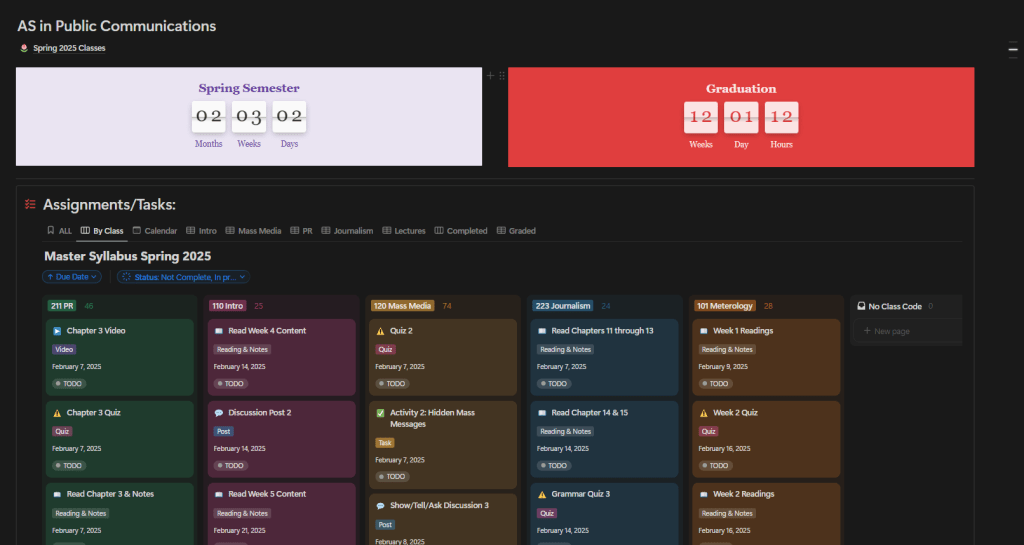
One of the best ways I’ve used Notion is to create a Master Syllabus to track every assignment from all six of my classes in one place. Instead of juggling separate syllabi, emails, and random sticky notes, I built a database where each assignment has a due date, course name, type (exam, paper, reading, etc.), and status (Not Started, In Progress, Done). I also linked it to a professor database, so with one click, I can pull up office hours or contact info. Using relations, each assignment connects to its corresponding class, and with rollups, I can see how many upcoming tasks I have per course. Now, instead of constantly flipping through documents, I just open my Master Syllabus and instantly know what’s due next—no surprises, no last-minute panicking (well, fewer last-minute panics).
Notion definitely has a steep learning curve, and when I first started using it, I felt like I was trying to learn an entirely new language. The endless possibilities were exciting but also overwhelming—databases, relations, rollups, formulas—it was a lot. But after five years of trial and error, tweaking setups, and watching way too many Thomas Frank videos, I can confidently say I’ve leveled up to a Notion Pro. Now, I build automated dashboards, track projects effortlessly, and create systems that actually work for me instead of adding to the chaos. Once you push past the initial frustration, Notion stops being just a tool and starts feeling like a custom-built command center for your life.

All rights to the Notion logo, brand, and trademarks are the property of Notion Labs Inc. All other trademarks and logos are the property of their respective owners. This content is not affiliated with or endorsed by Notion Labs Inc.

Cady Fallon
Writer for Lattes & Legislation
 Lattes & Legislation
Leave a comment